6.2. Cấu hình các kịch bản quy trình làm việc email tự động
This tool helps users build a workflow scenario for long-term customer care campaigns. The workflow operates based on If - Then conditions (e.g., "If a customer interacts with a previous email in a certain way, then what should the next action be?").
Steps to create Email Automation Workflow
Step 1: Select the Automation menu and click Create new automatic script flows.
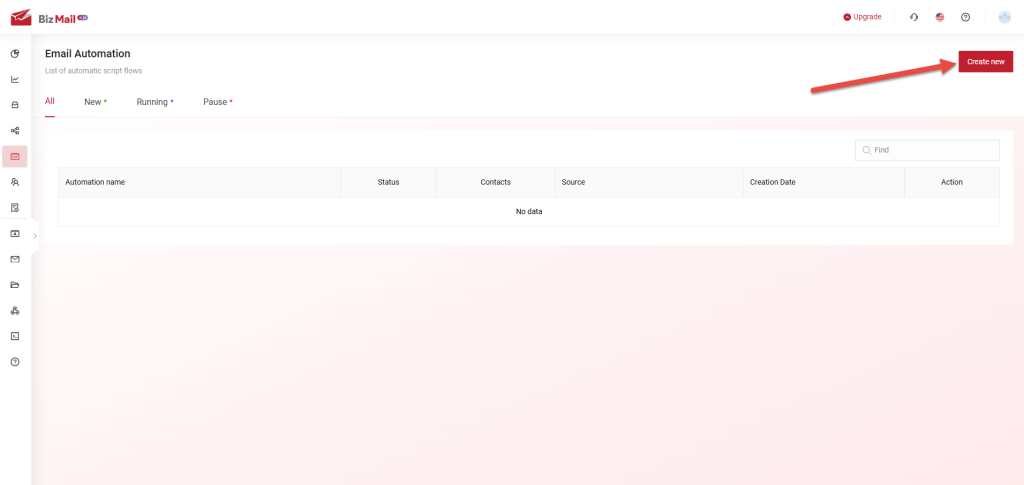
Step 2:
Step 2: Name your workflow and click Start.

Step 3:
Step 3: Begin building the workflow by adding Elements and Attributes according to your needs.
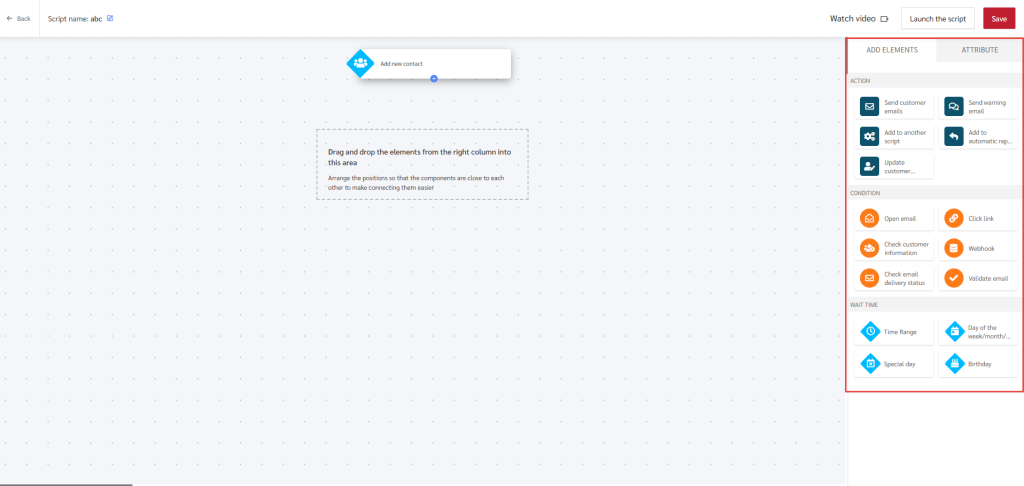
Step 4:
Step 4: Once the workflow is completed, click Save and then select Run it now.
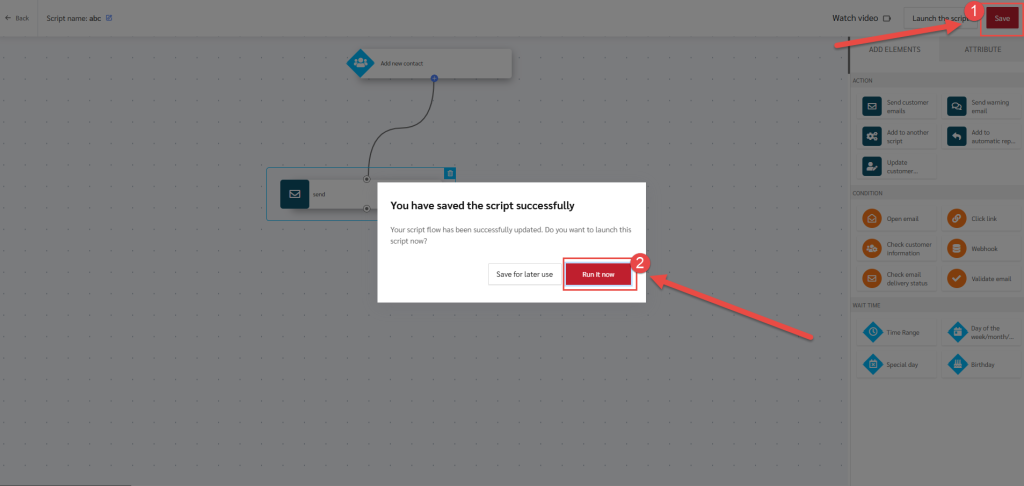
Step 5:
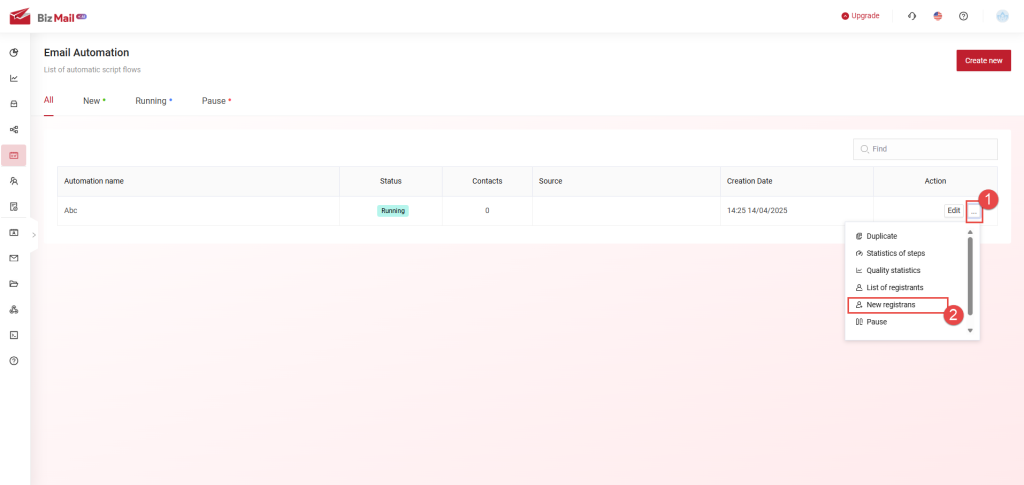
Step 5: In the Automation interface, click "...", then select New Registrans to add a customer list to the workflow.
Step 6:
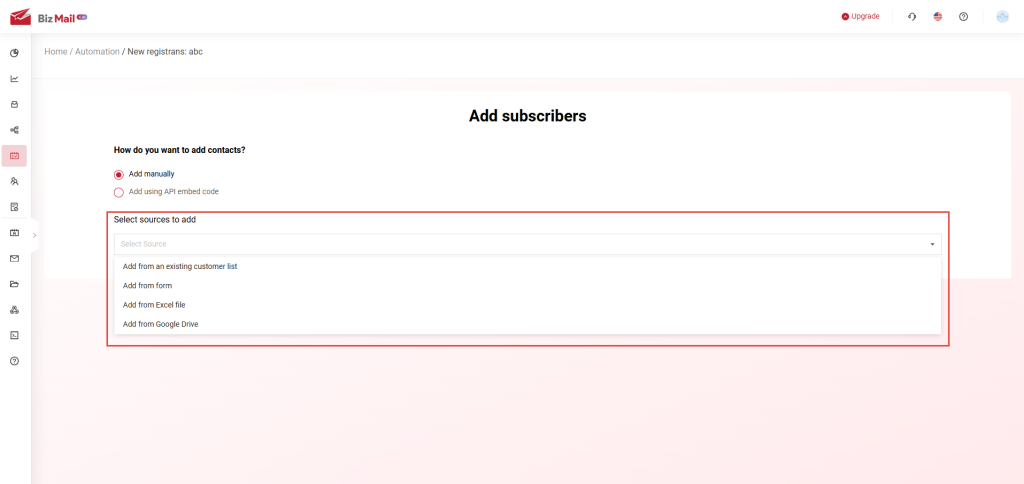
Step 6: Choose the source for adding customers.
Step 7:
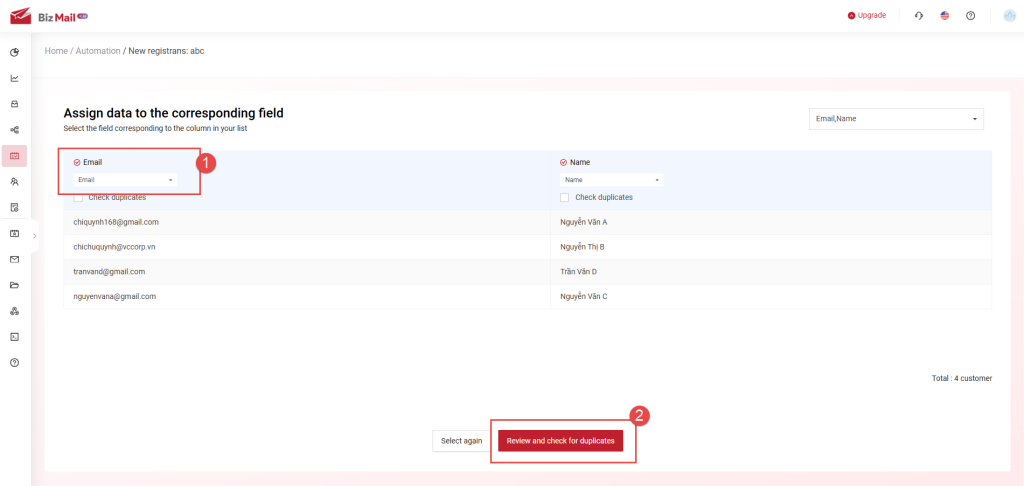
Step 7: Assign data to the corresponding fields. Then, click Review and check for duplicates.
Step 8:
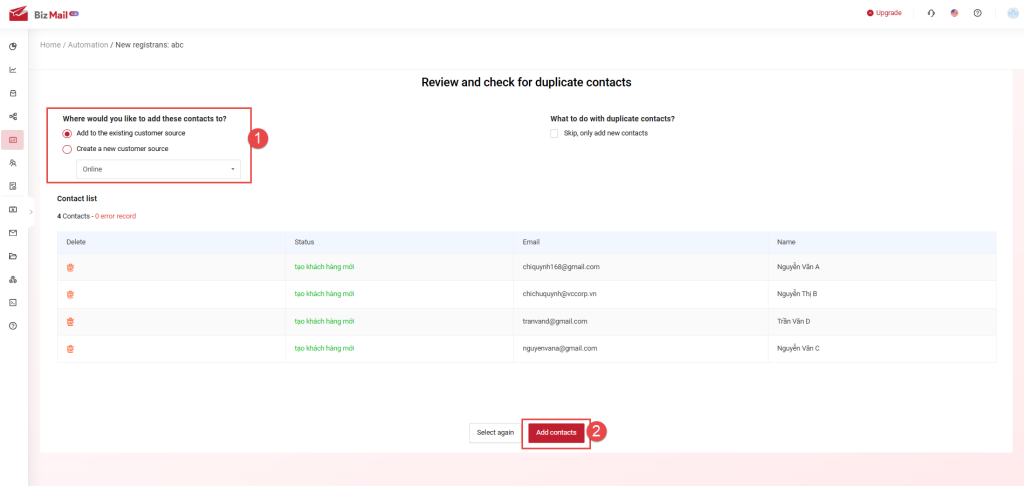
Step 8: Select a customer source and click Add customers to complete the process.
Tracking and Reporting
Tracking and Reporting
Once workflows have been created and customer lists have been assigned, users can track the performance of each step.
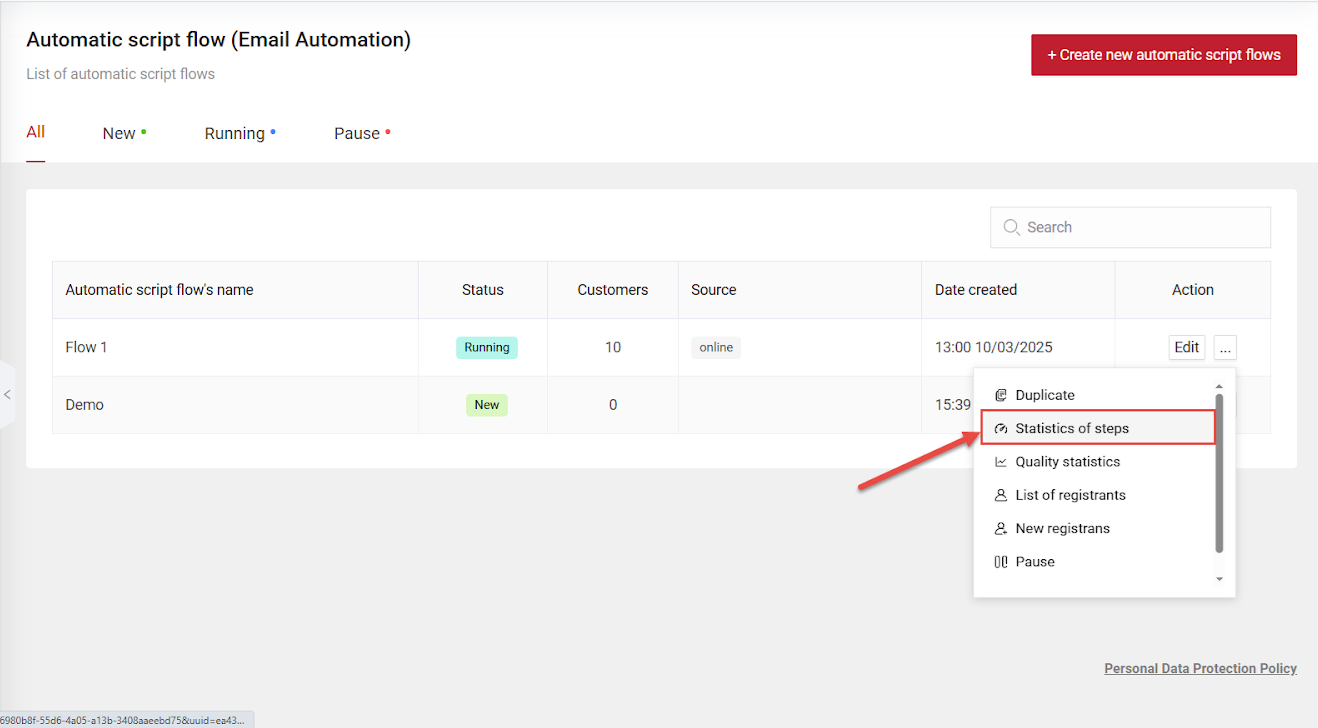
- Click "..." → Select Statistics of steps to view performance data.
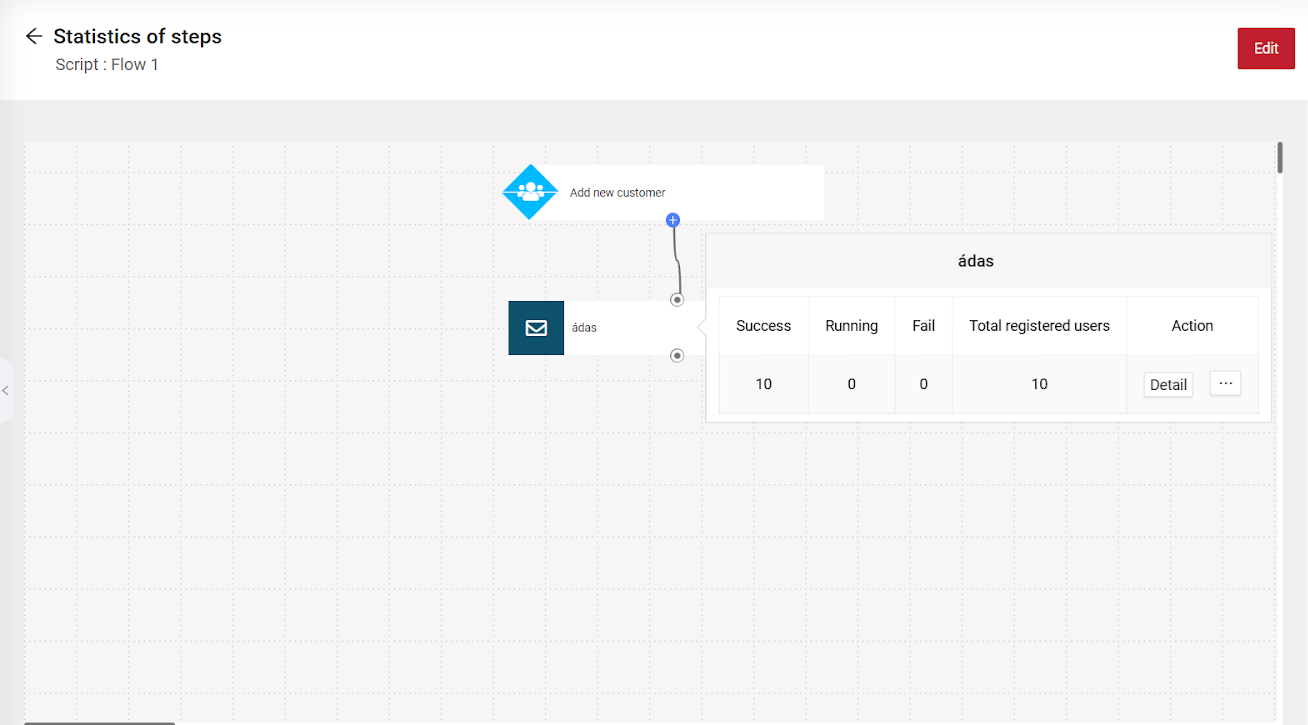
- Hover over each step to see detailed effectiveness metrics.
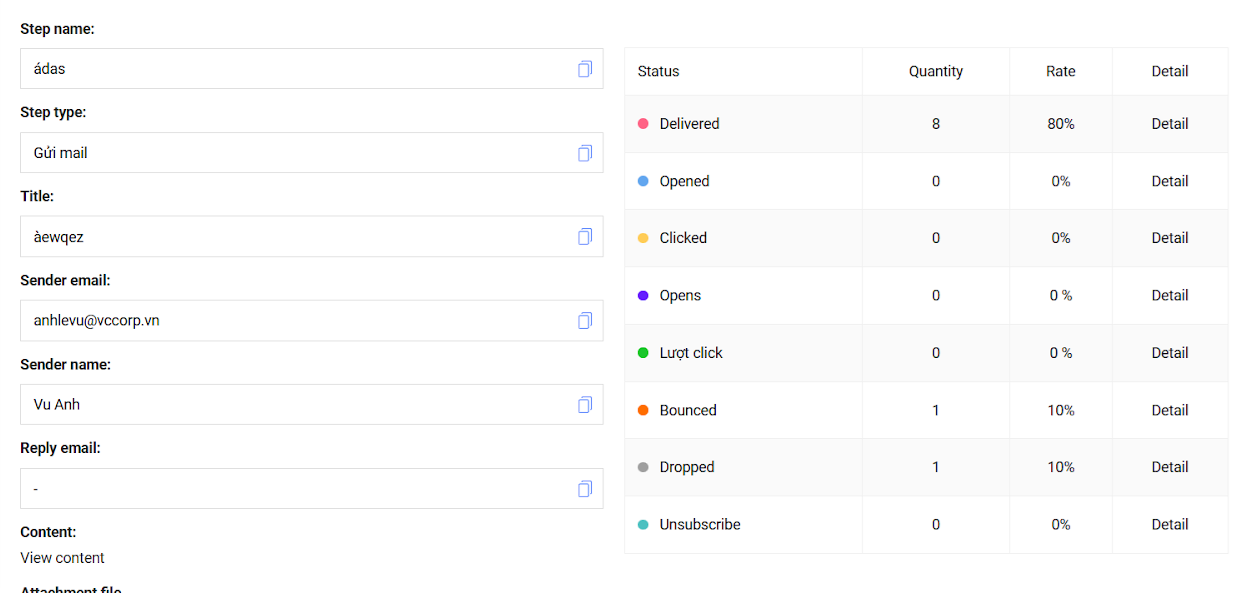
- Click Details in each step to view in-depth statistics.
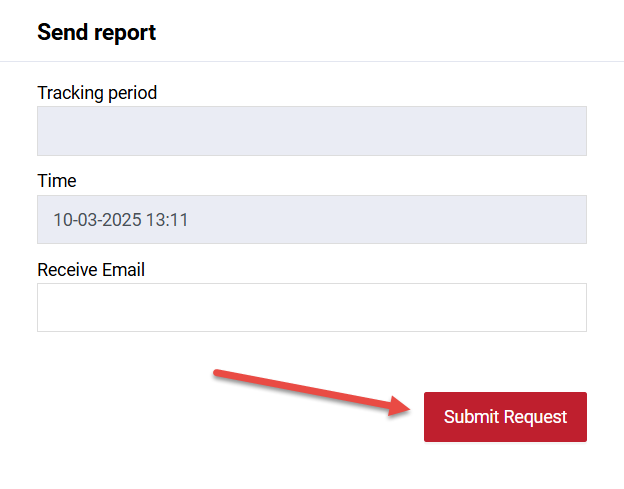
- Select Send Report to download a summary of subscriber activity.
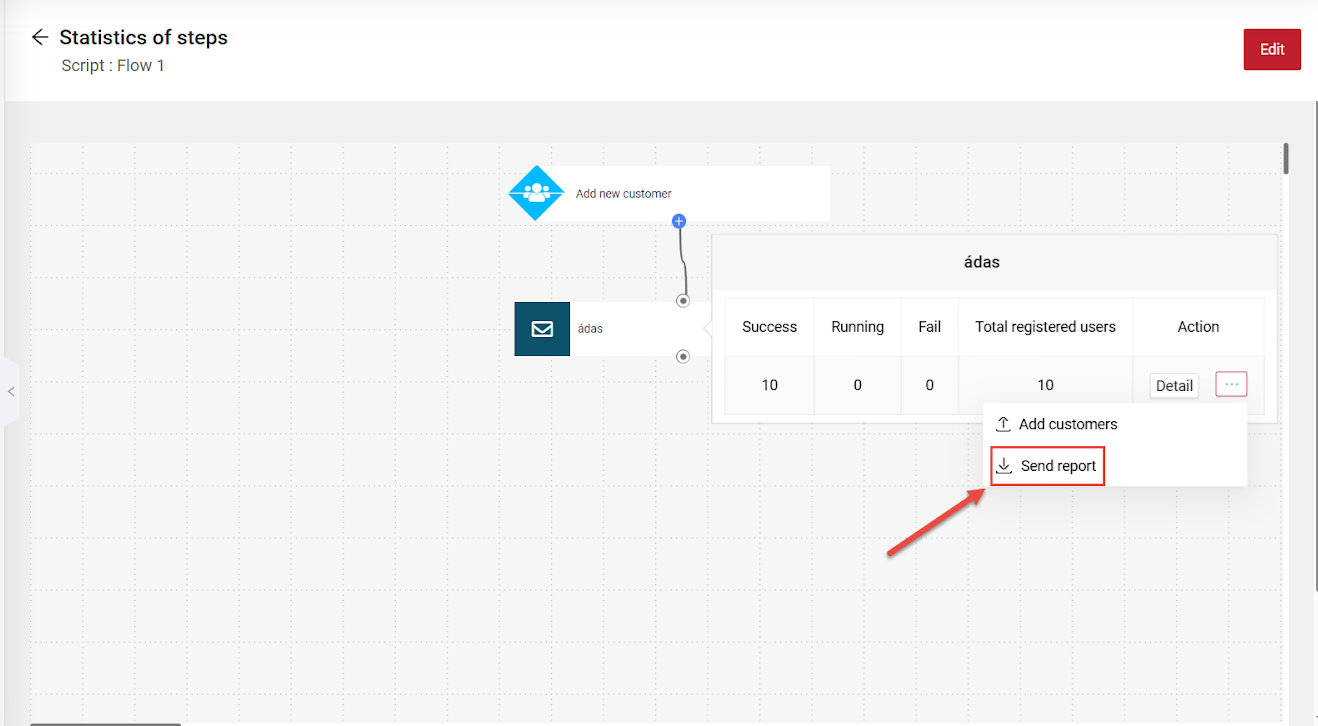
- Choose a Tracking period and enter the Email address to receive the report. Then, click Submit Request to complete.